Jeremy Tang
Few futures prop firms build their own software. Most license one, and the one they license most is Tradovate. Buy an evaluation from Apex Trader Funding, Take Profit Trader, Tradeify, TradeDay, Elite Trader Funding or roughly twenty other firms, and what you get is a Tradovate login.
That makes Tradovate the obvious home for prop firm automation — and the place where it most often breaks. Usually it isn't the strategy that fails. It's one of three mundane problems:
· Prop accounts can't get a Tradovate API key.
· Sending the same order size to every account destroys the smallest one.
· Every firm writes its own rules about bots, and they don't stay still.
This guide works through all three: what can actually automate a Tradovate prop account today, and how to set it up on SharkSignals.
Why prop firms cluster on Tradovate
Tradovate is a cloud-based futures platform, owned by NinjaTrader Group. It works in a browser, as a desktop app and on mobile — and your account lives on Tradovate's servers, not your machine.
Tradovate itself doesn't sell evaluations or funded accounts. Firms license a white-labeled version called Tradovate Prop and hand their traders logins for it. Tradovate's own directory currently shows more than 20 firms using it, such as:
· Apex Trader Funding
· Take Profit Trader
· Tradeify
· TradeDay
· Elite Trader Funding
· Lucid Trading
· FundedNext Futures
· The Trading Pit
Membership changes, so confirm the current roster on Tradovate's Find a Prop Firm page.
The implication: because your prop account is a Tradovate account, anything able to trade Tradovate on your behalf can — in principle — trade it. The catch is in how it connects.
The API wall: your prop account can't have a key
Anyone who's searched "Tradovate API prop firm" has already discovered this.
API access is a paid Tradovate add-on. It requires a live, funded personal Tradovate brokerage account holding at least $1,000, plus the API subscription — and prop firm and evaluation accounts are excluded no matter what their balance shows. Tradovate's support documentation states this plainly.
Which means the DIY route is closed for prop accounts. You can't spin up a Python script, mint an API key, and point it at your Apex login.
What does work is going through an application Tradovate has already authorized. You authenticate with your Tradovate username and password on Tradovate's own sign-in page, approve the access, and the app trades for you. No API key is ever created or pasted. Every cloud automation platform that reaches prop accounts works this way — including SharkSignals.
Three routes to automating a Tradovate prop account
1. Tradovate's built-in Group Trade
Group Trade is Tradovate's native multi-account feature. Drop accounts into a group, assign each a quantity, and a single order ticket fires into all of them.
Free, and built in. But the limits are real:
· One login only. Every grouped account must live under the same Tradovate login. Two accounts at one firm, fine. An Apex account and a Tradeify account, no.
· Clunky sizing. Order size must be a multiple of the group's combined quantity. If the group adds up to 3 contracts, you can send 3 or 6 — never 4.
· No signals. It consumes no TradingView alerts or any external signal, and it doesn't run ATM strategies. You're still pressing the button yourself.
Group Trade is a manual copier inside one firm. It isn't automation.
2. NinjaTrader as the front end
The same Tradovate prop credentials also sign you into NinjaTrader 8, which unlocks the whole NinjaTrader automation stack: NinjaScript strategies, ATM strategies, plus NinjaTrader-based copiers and bridges.
The price is the desktop. NinjaTrader is a Windows app, and something has to keep it alive — either your own computer or a VPS if you want it running all session without one.
3. Cloud platforms that connect via Tradovate sign-in
The newest and fastest-growing option. A cloud service connects to your Tradovate login through Tradovate's authorized sign-in, receives signals — typically TradingView alerts — and places orders on your prop accounts from its own servers. Your machine is out of the loop entirely.
SharkSignals, PickMyTrade, TradersPost and various dedicated copiers all take this approach. What separates them is the after-entry layer: who babysits the stop and target, how sizing is computed per account, and whether accounts from different firms can sit in the same setup.
| Group Trade | NinjaTrader front end | SharkSignals (direct) |
Takes signals automatically | No | Yes | Yes |
Accounts at different firms | No, one login | Yes | Yes |
Needs a PC or VPS running | No | Yes | No |
Separate size per account | Fixed ratio | Depends on the tool | Yes |
Uses your NinjaTrader ATM strategies | No | Yes | No (NinjaTrader route only) |
How SharkSignals automates Tradovate prop accounts
SharkSignals connects straight to Tradovate. You authenticate with the Tradovate credentials your prop firm issued, and SharkSignals trades your accounts from its own infrastructure — no desktop app, no VPS, nothing to babysit.
The difference from a plain "order router" shows up after the signal lands.
It sends the full bracket, not just the entry
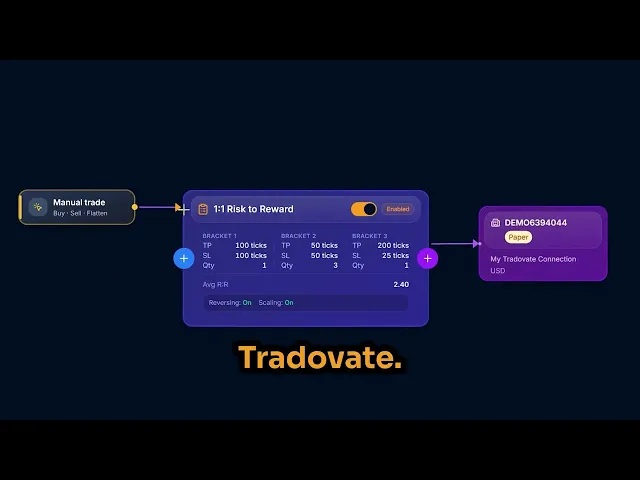
In the SharkSignals dashboard you build a TradePlan — the trade recipe: entry, stop, target, and the contract count for every account. When a signal fires, SharkSignals transmits entry, stop and target to Tradovate as a single bracket.
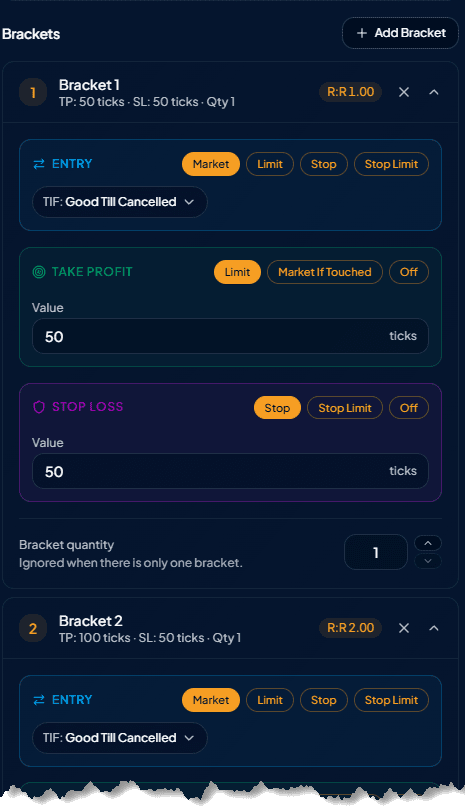
This matters more on Tradovate than most platforms, because Tradovate has no "close-only" order type. A stop or target placed alone — after you're already filled — is margined like a brand-new order and can be rejected.
That leaves you long or short with no protection… meaning you're trading naked! Seasoned trader's rarely trade naked.
Those exits are also set to keep working until filled or cancelled. Nothing gets silently dropped when the session ends.
One signal, many accounts, each sized for itself
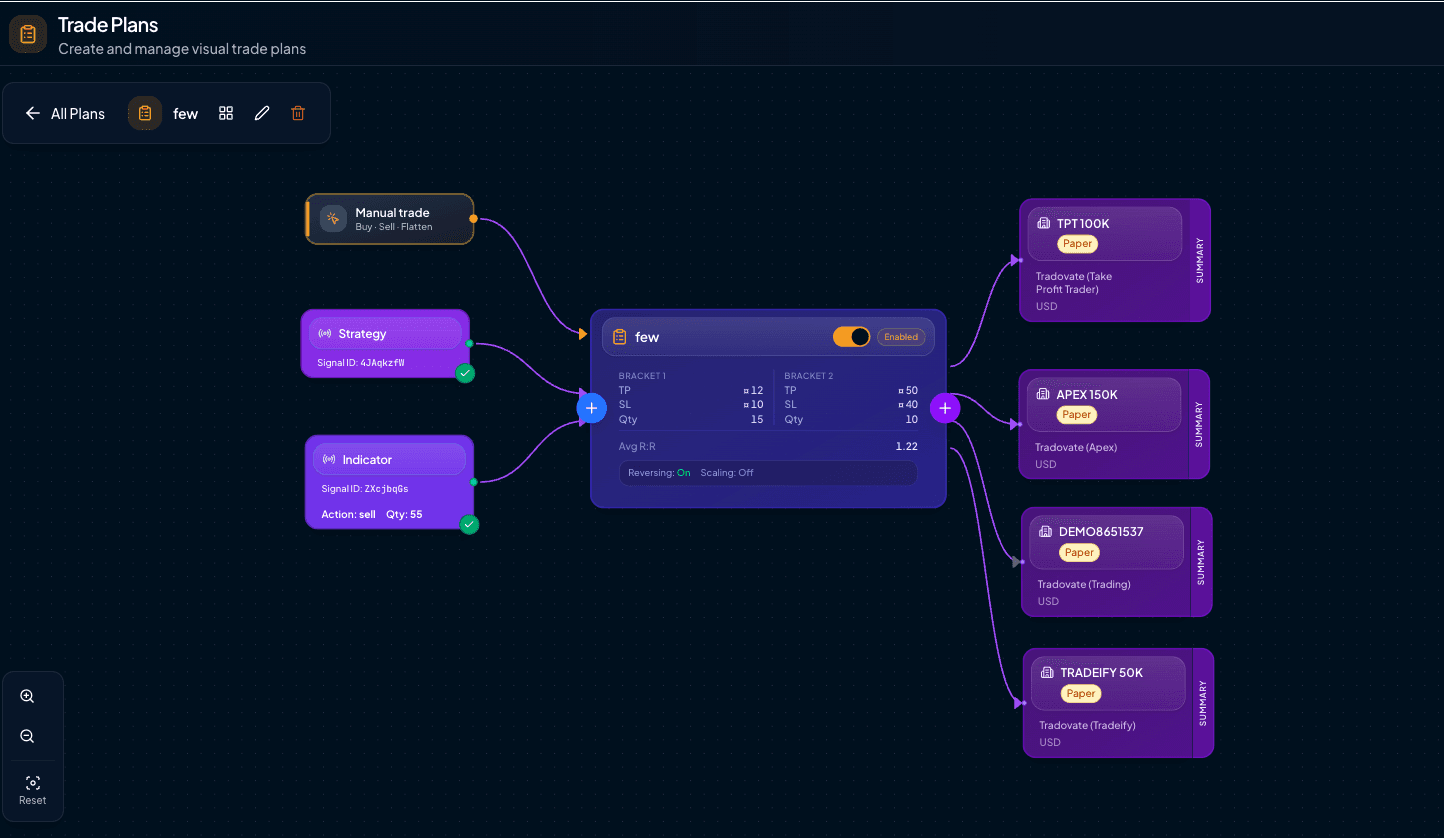
The "Trade Plan" model connects any number of signals (that you define) to as many broker accounts as you want - this gives you ultimate flexibility to trade however you want.
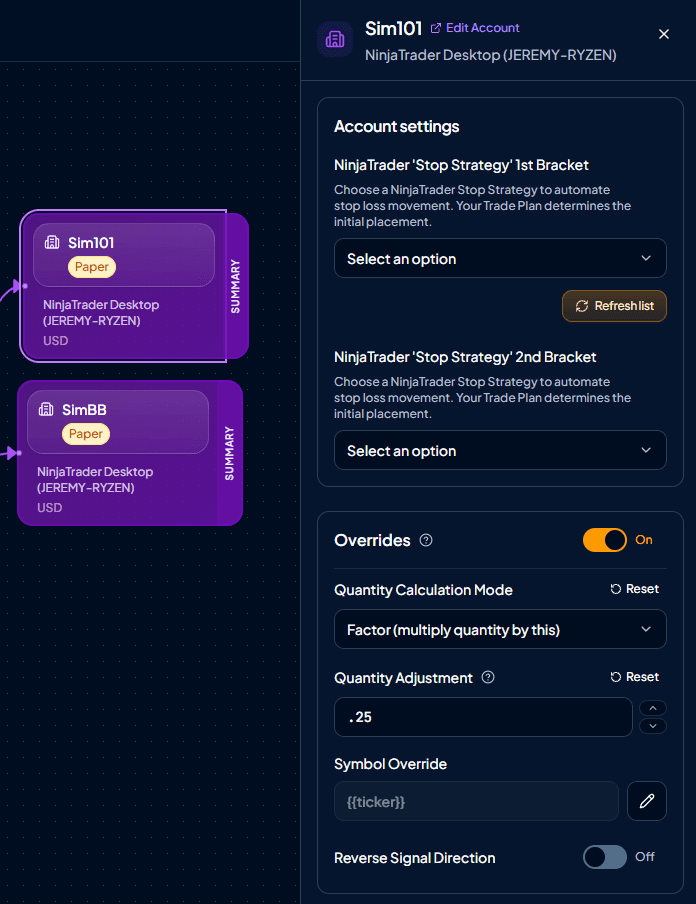
For example, a TradingView alert can send trades to multiple prop accounts (each with their own custom quantity). You can even use the same signal, and have it result with different instruments across accounts: (IE: MES on the small account, ES on the big one).
Different risk on different accounts
You can easily define your stops and targets on the TradePlan and they will automatically be placed on any connected account. So if your evaluation account needs a tighter stop than your funded account, feed the same signal into two TradePlans with different brackets and attach each account to the plan that suits it.
Accounts across firms
Each firm issues its own Tradovate login. Connect each one to SharkSignals, and one TradePlan can stretch across all of them — something Group Trade structurally cannot do.
Trade the Best Month Contracts Automatically
Anyone that has traded futures, knows that selecting an appropriate contract for a symbol isn't as simple as just choosing the front-month contract. There's some nuances to choosing it, and it often depends on the commodity and its seasonal trading characteristics. SharkSignals takes this all into account.
SharkSignals automatically translate TradingView's continuous contract (such as ES1!) to the best monthly contract on that symbol. This means you don't have to worry about roll-overs, or updating your symbols to the latest / best trading month.
Signals beyond TradingView
SharkSignals is designed to take more than just TradingView indicators and strategy alerts. Signals can be sent from anywhere and can even be user defined to drive custom behaviors, such as placing a stop loss or take profit exactly where you want it.
It's like being able to customize your own API to suit your needs (not the other way around).
Direct Tradovate vs. the NinjaTrader route
SharkSignals offers both paths. One is simpler; the other is more powerful.
· Direct to Tradovate: simplest. Nothing to install or run. This path places fixed brackets. It doesn't yet move stops or targets mid-trade — trailing a stop, stepping it to breakeven — though that's on the roadmap.
· Through NinjaTrader: most control. Since your Tradovate prop login works in NinjaTrader, you can route the same accounts through it using the SharkIndicators desktop client, then manage each trade with your own ATM strategies and BlackBird templates, including trailing or tightening stops. The cost: NinjaTrader must run on a PC or VPS.
Set-and-forget with fixed brackets? Go direct. Edge depends on active trade management? Take the NinjaTrader route.
Why per-account sizing decides whether your accounts survive
This is the scenario that kills most multi-account setups.
You run three Tradovate prop accounts off one strategy: a $50,000 evaluation, a $100,000 evaluation, and a $150,000 funded account. Suppose the $50,000 account closes at a $2,000 loss. (Illustrative numbers — use your firm's real limits.)
The strategy trades 3 ES contracts with a 10-point stop. At $50 per point per contract, a stopped trade costs 3 × 10 × $50 = $1,500.
On the $150,000 account that's an ordinary loser. On the $50,000 account it's three-quarters of the entire loss allowance — in a single trade. Two back-to-back losers and that account is dead while the big one barely registers.
That's identical copying in action: same size everywhere, with the smallest account absorbing the most risk. Per-account sizing fixes it:
Account | Size | Risk if stopped out |
$150,000 funded | 3 ES | $1,500 |
$100,000 evaluation | 2 ES | $1,000 |
$50,000 evaluation | 5 MES | $250 |
One signal, three accounts, and each one risks an amount it can actually absorb.
It matters even more under a trailing drawdown, where the loss limit chases your highest balance upward. On some plans it tracks peak open profit, tick by tick — meaning a winning trade that gives back its gains can still ratchet the floor up permanently. Oversized positions get punished twice.
Firm rules to verify before flipping automation on
Something can work perfectly in code and still violate your firm's terms. Confirm each of these with the firm before connecting anything. Rules shift often, and only the current terms count.
· Is automation permitted on this account type? Several firms allow bots on evaluations but restrict funded accounts. Apex, for instance, distinguishes supervised, semi-automated trading from fully unattended bots on funded accounts. Read the exact current language.
· Copying across accounts. Most firms tolerate copying between your own accounts. Copying someone else's trades is generally prohibited. Some firms also cap how many accounts you may hold.
· Stop-loss requirements. A growing number of firms expect automated trades to carry a stop. A bracket placed with the entry satisfies this by construction.
· Flat-by times. Many firms require flat before the close. Apex's cutoff is 4:59 PM ET. SharkSignals does not auto-flatten at a set time today, so meeting the flat-by deadline is on you.
· News rules. Some firms restrict activity around major economic releases.
· Device and location rules. A few firms restrict where orders may originate. Topstep, for example, has "personal device" language around copy trading and now pushes traders toward its own TopstepX platform. Confirm with any firm like that before automating.
One candid note on risk limits. SharkSignals doesn't yet enforce daily loss limits, trade-count limits, or trading windows on your behalf — those guardrails are in development. Until they arrive, your firm's limits and your own attention are the safety net. Keep brackets conservative and supervise the early sessions.
Getting set up on SharkSignals
1. Create your SharkSignals account at sharksignals.com. SharkSignals is currently in early access.
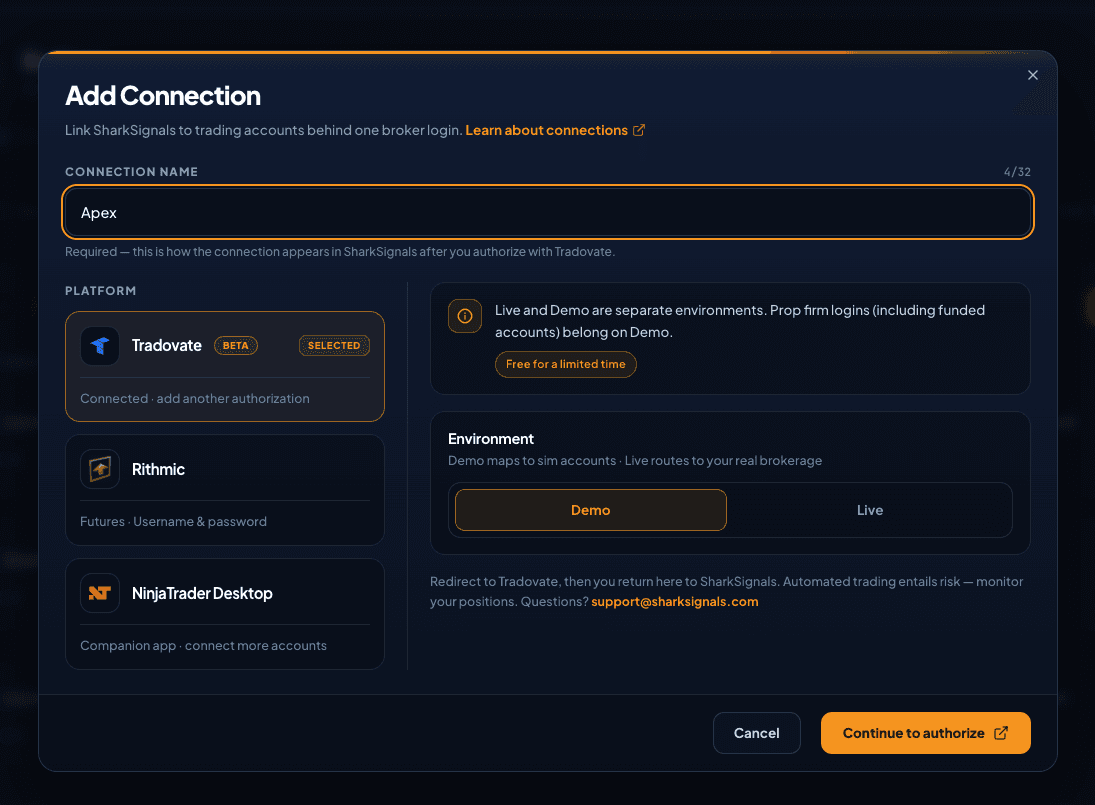
2. Connect Tradovate. Select Tradovate as the broker and choose the Demo environment — that's where prop firm accounts live on Tradovate. Sign in with the Tradovate username and password your prop firm issued, then approve access. Repeat for each firm's login.
3. Create a signal. Choose the source: TradingView indicator alert, TradingView strategy alert, TrendSpider, or AI Prompt. SharkSignals hands you a webhook URL and a ready-made alert message. The smallest valid message is one line:
{ "$signalId": "OIq3Xxy6" }
4. Build the TradePlan. Define the stop and target. Attach your Tradovate accounts and assign each its own contract count — and its own instrument, if you like.
5. Paste the webhook into your TradingView alert. The URL goes in the alert's Webhook URL field; the message goes in the message box.
6. Test on an evaluation account first. Fire a few signals. Verify each account received the intended size, and that the stop and target arrived with the entry.
7. Go live and supervise. Watch the first sessions. Automation removes the clicking — it doesn't remove the need to know what your accounts are doing.
The failure modes you'll actually hit on Tradovate prop accounts
· The small account inherited the big account's size. Identical sizing. Fix it with per-account contract counts.
· A stop never appeared. An exit placed alone after the fill was rejected on margin. Fix it by sending the bracket with the entry.
· Protection vanished overnight. Exits submitted as day orders were cancelled at session close. Use working-till-filled exits — and on firms with a flat-by rule, be flat anyway.
· Group Trade rejected the order. The size wasn't a multiple of the group's total quantity.
· Automation ran on an account type that forbids it. Check rules per account type, not once per firm.
· Alerts died at rollover. The alert hard-coded a contract month. Send ES1! and let the bridge resolve it.
Frequently asked questions
Can I use the Tradovate API with my prop firm account? No. The Tradovate API add-on demands a live, funded personal account with at least $1,000, and prop firm and evaluation accounts are excluded regardless of balance. To automate a prop account, connect through an application Tradovate has authorized — such as SharkSignals — where you sign in with your Tradovate credentials rather than an API key.
Do I need a VPS to automate a Tradovate prop account? Not with a cloud connection. SharkSignals' direct Tradovate connection runs on its own servers, so your computer can stay off. A PC or VPS only enters the picture if you choose the NinjaTrader route for ATM strategies and advanced trade management.
Can I copy trades across prop accounts at different firms on Tradovate? Not with Group Trade — it only groups accounts under a single login. SharkSignals can connect each firm's Tradovate login and drive all of them from one signal, sized individually, provided every firm's rules allow it.
Does Apex allow automated trading on Tradovate? Apex has allowed automation on evaluation accounts and attaches stricter conditions to funded accounts, drawing a line between supervised trading and fully unattended bots. Check Apex's current rules before automating a funded account.
Can SharkSignals trail my stop on Tradovate? Not yet on the direct connection. It places fixed stop/target brackets, and moving stops is on the roadmap. If you need trailing today, route your Tradovate prop account through NinjaTrader with the SharkIndicators desktop client and use your ATM strategies.
Which environment do I choose when connecting a prop account? Demo. Prop firm accounts on Tradovate reside in the demo environment, and you sign in with the credentials your firm issued.
Where to go next
· NinjaTrader copy trading for prop firms: the full multi-firm playbook, including how Tradovate and Rithmic firms connect.
· Take Profit Trader automation: a Tradovate firm whose drawdown rules change the day you get funded.
· Tradeify automation: three account tiers, a daily loss limit that grows, and sizing each tier on its own terms.
· MyFundedFutures automation: plan-by-plan drawdown rules and how to size across them.

Fully automated trade management for serious traders. Connect TradingView signals to NinjaTrader and execute with rules that never break.
support@sharksignals.com
Resources
© 2026 SharkSignals.
The R | Protocol API™ software is Copyright © 2026 by Rithmic, LLC.
Trading Platform by Rithmic™ is a trademark of Rithmic, LLC.
The OMNE™ software is Copyright © 2026 by Omnesys, LLC and Omnesys Technologies, Inc.
Powered by OMNE" artwork, followed by "is a trademark of Omnesys, LLC and Omnesys Technologies, Inc.
All rights reserved.
Trading involves risk. Past performance does not guarantee future results. See full risk disclosure.